Write a workbook to CSV or XLSX data with SheetJS
XLSX.write returns the file contents instead of saving a file, so you can show them, upload them or hand them to another API. bookType picks the format and type picks the JavaScript form.
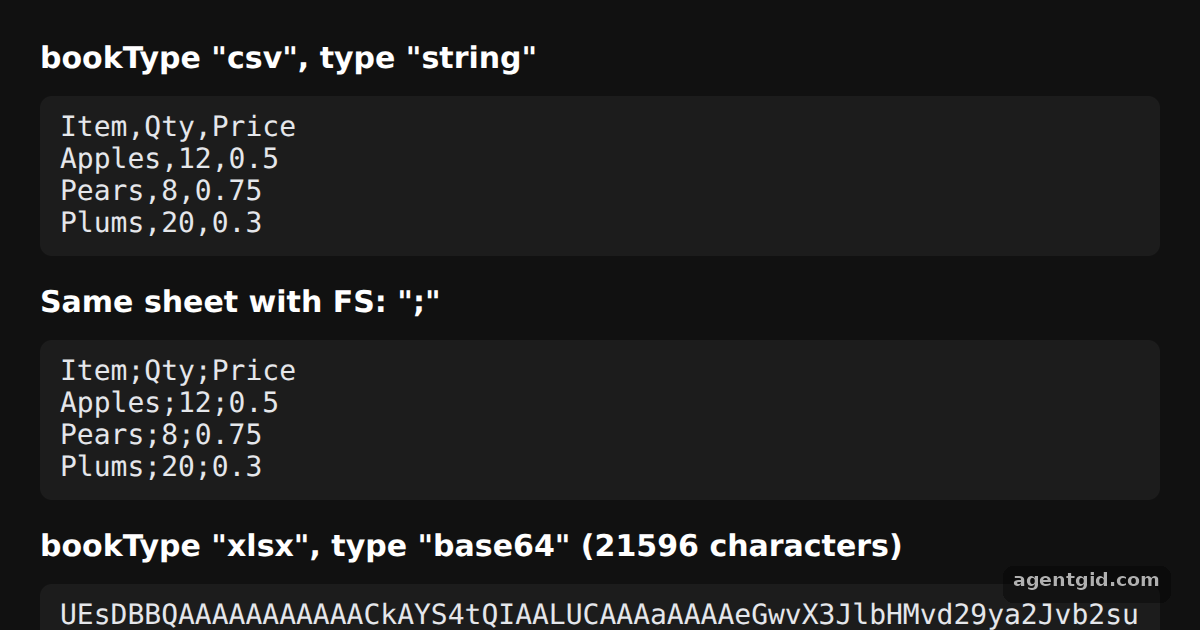
How it works
- write returns the data. Each call to
XLSX.write(wb, opts)returns the exported file as a value, which the example prints in the page. Nothing is downloaded. [1] - bookType and type. The options object always names a
bookType("csv"or"xlsx") and atype. CSV is returned as a"string"; the binary XLSX file comes back as"base64". [1] - Change the separator. Adding
FS: ";"switches the field separator, as the second block shows. [1]
Run and edit it
It runs in your browser, in a sandboxed frame that cannot see this site; the packages load from esm.sh only after you press Run.
import * as XLSX from "xlsx";

// Dark page styles
const css = document.createElement("style");
css.textContent = `
  body { margin: 0; background: #111; }
  #root { font: 14px system-ui, sans-serif; color: #e5e7eb; padding: 20px; box-sizing: border-box; }
  h3 { margin: 0 0 10px; font-size: 15px; color: #fff; }
  table { border-collapse: collapse; background: #1c1c1c; }
  td, th { border: 1px solid #3a3a3a; padding: 6px 12px; text-align: left; }
  tr:first-child td { background: #2a2a2a; font-weight: 600; color: #fff; }
`;
document.head.appendChild(css);
css.textContent += "pre { margin: 0 0 14px; padding: 8px 10px; background: #1c1c1c; border-radius: 6px; white-space: pre-wrap; word-break: break-all; }";

const aoa = [
  ["Item", "Qty", "Price"],
  ["Apples", 12, 0.5],
  ["Pears", 8, 0.75],
  ["Plums", 20, 0.3],
];
const wb = XLSX.utils.book_new();
XLSX.utils.book_append_sheet(wb, XLSX.utils.aoa_to_sheet(aoa), "Fruit");

// write() returns the file data instead of saving a file
const csv = XLSX.write(wb, { bookType: "csv", type: "string" });
const semi = XLSX.write(wb, { bookType: "csv", type: "string", FS: ";" });
const xlsx = XLSX.write(wb, { bookType: "xlsx", type: "base64" });

const root = document.getElementById("root");
function block(title, text) {
  const h = document.createElement("h3");
  h.textContent = title;
  const pre = document.createElement("pre");
  pre.textContent = text;
  root.append(h, pre);
}
block('bookType "csv", type "string"', csv);
block('Same sheet with FS: ";"', semi);
block(`bookType "xlsx", type "base64" (${xlsx.length} characters)`, xlsx.slice(0, 72) + " ...");
Change FS to a pipe character and the second block uses | between fields. Code written by AgentGid [1].
Change FS to a pipe character and the second block uses | between fields. Code written by AgentGid [1].Checked Oct 12, 2026: it starts without errors in Chromium with xlsx 0.18.5. Needs WebGL.
More SheetJS examples
Array of objects to worksheet in SheetJS Array of arrays to worksheet in SheetJS Add and append rows with sheet_add_aoa in SheetJS HTML table to worksheet in SheetJS
Sources
Explanations written by AgentGid from the official docs; the numbers in brackets point here. The code marked "written by AgentGid" is ours and free to copy.