Custom CSS theme with class names
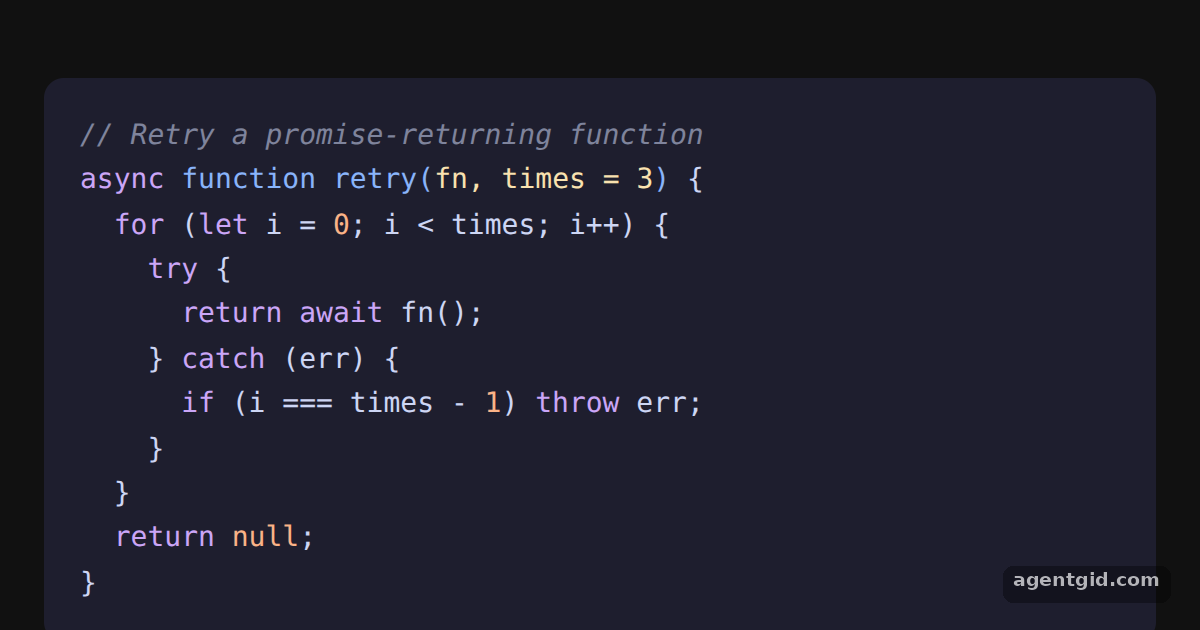
By default the component writes inline styles. Switching that off gives you plain highlight.js class names, so the theme can live in CSS.
All React Syntax Highlighter examples React Syntax Highlighter: usage and stats
How it works
- Switch to class names.
useInlineStyles={false}stops the component from adding style objects, so every token only carries a class such ashljs-keyword. [1] - Write the theme in CSS. A
<style>element defines a dark theme for thehljsclasses. The highlight.js CSS files target the same class names. [1] - Style the code tag.
codeTagPropspasses aclassNameto the innercodeelement, which the stylesheet uses for the font. [1]
Run and edit it
It runs in your browser, in a sandboxed frame that cannot see this site; the packages load from esm.sh only after you press Run.
import SyntaxHighlighter from 'react-syntax-highlighter';

const css = `
.hljs { background: #1e1e2e; color: #cdd6f4; padding: 18px; border-radius: 10px; width: 520px; }
.code-font { font: 14px/1.6 ui-monospace, Menlo, monospace; }
.hljs-keyword, .hljs-built_in { color: #cba6f7; }
.hljs-string { color: #a6e3a1; }
.hljs-number, .hljs-literal { color: #fab387; }
.hljs-comment { color: #7f849c; font-style: italic; }
.hljs-title, .hljs-function { color: #89b4fa; }
.hljs-params { color: #f9e2af; }
`;

const code = `// Retry a promise-returning function
async function retry(fn, times = 3) {
  for (let i = 0; i < times; i++) {
    try {
      return await fn();
    } catch (err) {
      if (i === times - 1) throw err;
    }
  }
  return null;
}`;

export default function App() {
  return (
    <div style={{ background: '#111', height: 360, display: 'grid', placeItems: 'center' }}>
      <style>{css}</style>
      <SyntaxHighlighter
        language="javascript"
        useInlineStyles={false}
        codeTagProps={{ className: 'code-font' }}
      >
        {code}
      </SyntaxHighlighter>
    </div>
  );
}
Change a color in the css string, for example .hljs-string, to restyle every token of that kind. Code written by AgentGid [1].
Change a color in the css string, for example .hljs-string, to restyle every token of that kind. Code written by AgentGid [1].Checked Oct 12, 2026: it starts without errors in Chromium with react-syntax-highlighter 16.1.2, react 19.3.0, react-dom 19.3.0. Needs WebGL.
More React Syntax Highlighter examples
Highlight code in React Prism highlighting for JSX Line numbers in react-syntax-highlighter Highlight specific lines
Sources
Explanations written by AgentGid from the official docs; the numbers in brackets point here. The code marked "written by AgentGid" is ours and free to copy.