Selecting multiple dates in React Day Picker
Multiple mode lets users toggle any number of days on and off. The selection is an array of dates kept in your state.
All React Day Picker examples React Day Picker: usage and stats
How it works
- Switch to multiple mode.
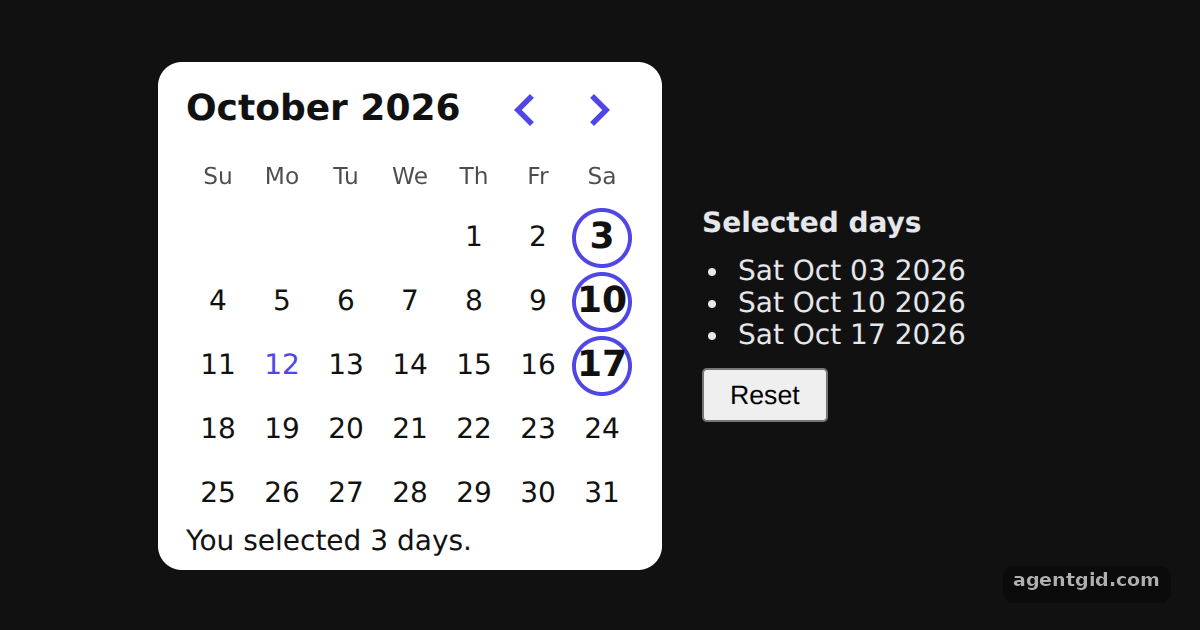
mode="multiple"turns each click into a toggle. Theselectedprop receives an array ofDateobjects, starting with three days of the current month. [1] - Keep the array in state.
onSelectpasses the new array, which is stored withsetDays. When the last day is removed the value can be empty, so the code falls back to[]. [2] - Use the selection elsewhere. The side panel sorts the dates and lists them, and the Reset button sets the state back to an empty array. The footer counts the selected days. [3]
Run and edit it
It runs in your browser, in a sandboxed frame that cannot see this site; the packages load from esm.sh only after you press Run.
import { useState } from "react";
import { DayPicker } from "react-day-picker";

// Smaller cells and an indigo accent, set through DayPicker's CSS variables
const vars = { "--rdp-accent-color": "#4f46e5", "--rdp-accent-background-color": "#e0e7ff", "--rdp-day-width": "32px", "--rdp-day-height": "32px", "--rdp-day_button-width": "30px", "--rdp-day_button-height": "30px", "--rdp-nav-height": "2.25rem" };
const page = { minHeight: "100vh", display: "flex", alignItems: "center", justifyContent: "center", gap: 20, background: "#111", color: "#e5e7eb", font: "14px system-ui, sans-serif" };
const card = { background: "#fff", color: "#111", borderRadius: 12, padding: "6px 14px" };

const day = (n) => { const t = new Date(); return new Date(t.getFullYear(), t.getMonth(), n); };

export default function App() {
  const [days, setDays] = useState([day(3), day(10), day(17)]);
  const sorted = [...days].sort((a, b) => a - b);
  return (
    <div style={page}>
      <div style={card}>
        <DayPicker
          mode="multiple"
          selected={days}
          onSelect={(value) => setDays(value || [])}
          style={vars}
          footer={days.length ? `You selected ${days.length} days.` : "Please pick one or more days."}
        />
      </div>
      <div style={{ width: 170 }}>
        <b>Selected days</b>
        <ul style={{ paddingLeft: 18, margin: "8px 0" }}>
          {sorted.map((d) => <li key={d.getTime()}>{d.toDateString()}</li>)}
        </ul>
        <button onClick={() => setDays([])} style={{ padding: "4px 12px" }}>Reset</button>
      </div>
    </div>
  );
}
Click days to add or remove them; the list on the right and the footer count update together. Code written by AgentGid [1].
Click days to add or remove them; the list on the right and the footer count update together. Code written by AgentGid [1].Checked Oct 12, 2026: it starts without errors in Chromium with react-day-picker 10.0.2, react 19.3.0, react-dom 19.3.0. Needs WebGL.
More React Day Picker examples
Single date picker in React Day Picker Date range picker in React Day Picker Selecting a whole week in React Day Picker Accessible date picker with React Day Picker
Sources
Explanations written by AgentGid from the official docs; the numbers in brackets point here. The code marked "written by AgentGid" is ours and free to copy.