Date range picker in React Day Picker
Range mode selects a start and an end date, for bookings, reports or any period. The value is an object with from and to dates.
All React Day Picker examples React Day Picker: usage and stats
How it works
- Turn on range mode.
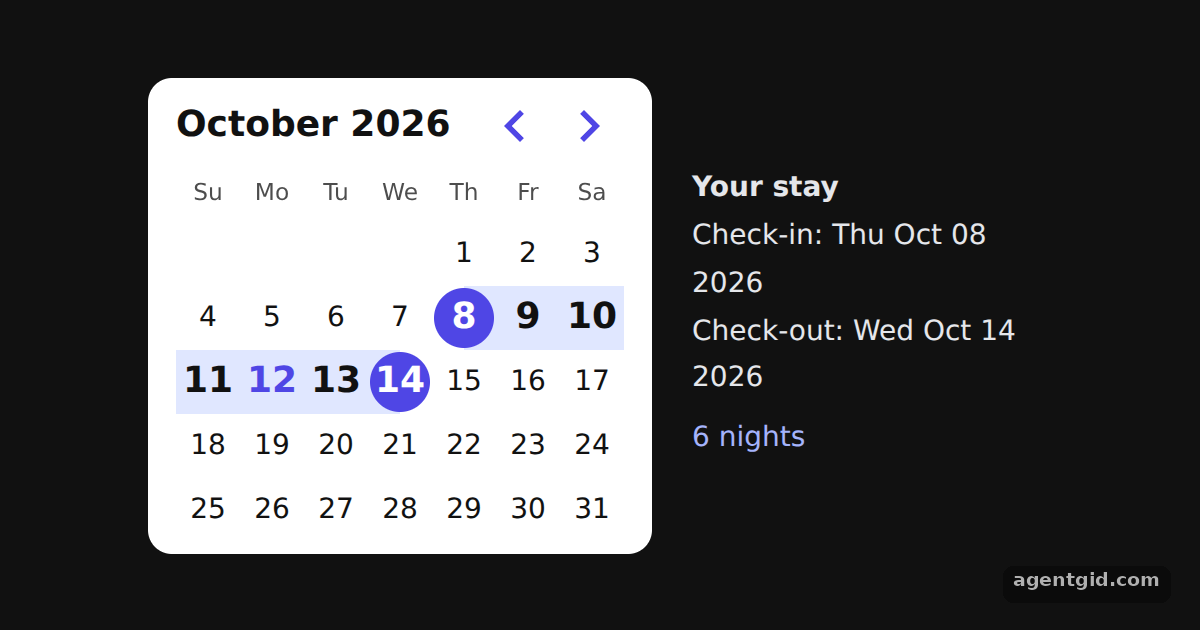
mode="range"makes the calendar select a span of days. The state starts with a week of the current month as{ from, to }. [1] - Control the range.
selectedandonSelectwork the same way as in single mode, only the value is a range object instead of one date. [1] - Read from and to. A range has a
fromand atodate, and either can be empty while the user is picking. The side panel shows both and computes the nights as the difference divided by one day in milliseconds. [2]
Run and edit it
It runs in your browser, in a sandboxed frame that cannot see this site; the packages load from esm.sh only after you press Run.
import { useState } from "react";
import { DayPicker } from "react-day-picker";

// Smaller cells and an indigo accent, set through DayPicker's CSS variables
const vars = { "--rdp-accent-color": "#4f46e5", "--rdp-accent-background-color": "#e0e7ff", "--rdp-day-width": "32px", "--rdp-day-height": "32px", "--rdp-day_button-width": "30px", "--rdp-day_button-height": "30px", "--rdp-nav-height": "2.25rem" };
const page = { minHeight: "100vh", display: "flex", alignItems: "center", justifyContent: "center", gap: 20, background: "#111", color: "#e5e7eb", font: "14px system-ui, sans-serif" };
const card = { background: "#fff", color: "#111", borderRadius: 12, padding: "6px 14px" };

const day = (n) => { const t = new Date(); return new Date(t.getFullYear(), t.getMonth(), n); };

export default function App() {
  // A range is an object with `from` and `to` dates
  const [range, setRange] = useState({ from: day(8), to: day(14) });
  const nights = range?.from && range?.to ? Math.round((range.to - range.from) / 86400000) : 0;
  return (
    <div style={page}>
      <div style={card}>
        <DayPicker mode="range" selected={range} onSelect={setRange} style={vars} />
      </div>
      <div style={{ width: 180, lineHeight: 1.7 }}>
        <b>Your stay</b>
        <div>Check-in: {range?.from ? range.from.toDateString() : "pick a day"}</div>
        <div>Check-out: {range?.to ? range.to.toDateString() : "pick a day"}</div>
        <div style={{ color: "#a5b4fc", marginTop: 6 }}>{nights} nights</div>
      </div>
    </div>
  );
}
Click a start day and then an end day; the check-in, check-out and nights update on the right. Code written by AgentGid [1].
Click a start day and then an end day; the check-in, check-out and nights update on the right. Code written by AgentGid [1].Checked Oct 12, 2026: it starts without errors in Chromium with react-day-picker 10.0.2, react 19.3.0, react-dom 19.3.0. Needs WebGL.
More React Day Picker examples
Single date picker in React Day Picker Selecting multiple dates in React Day Picker Selecting a whole week in React Day Picker Accessible date picker with React Day Picker
Sources
Explanations written by AgentGid from the official docs; the numbers in brackets point here. The code marked "written by AgentGid" is ours and free to copy.