Accessible date picker with React Day Picker
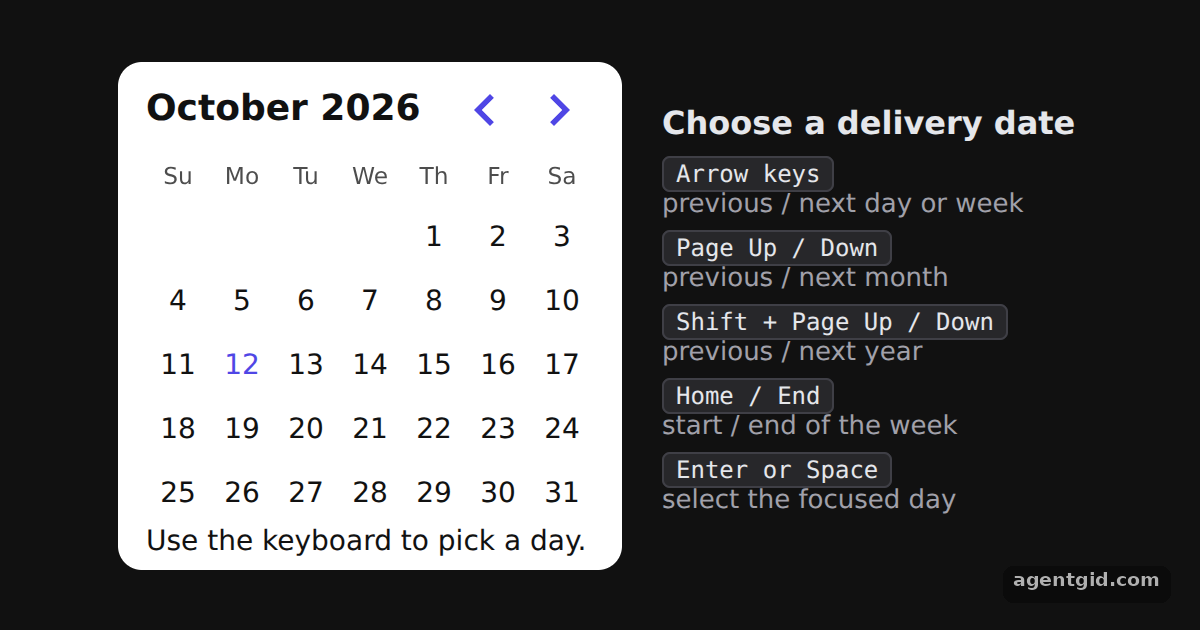
Date pickers have to work with a keyboard and a screen reader. This example uses DayPicker's accessibility props and lists the supported keys.
All React Day Picker examples React Day Picker: usage and stats
How it works
- Give the calendar a role and a title.
role="application"sets the container role andaria-labelledbypoints to the heading in the side panel, so assistive tech can announce it as the calendar title. [1] - Announce the selection in the footer. The
footerprop shows the chosen date, or a hint before anything is picked. The docs suggest the footer as the place to announce a selection. [1] - Navigate with the keyboard. The side panel lists the keys DayPicker supports. Once a day has focus, these keys move around the calendar and Enter or Space selects the day. [1]
Run and edit it
It runs in your browser, in a sandboxed frame that cannot see this site; the packages load from esm.sh only after you press Run.
import { useState } from "react";
import { DayPicker } from "react-day-picker";

// Smaller cells and an indigo accent, set through DayPicker's CSS variables
const vars = { "--rdp-accent-color": "#4f46e5", "--rdp-accent-background-color": "#e0e7ff", "--rdp-day-width": "32px", "--rdp-day-height": "32px", "--rdp-day_button-width": "30px", "--rdp-day_button-height": "30px", "--rdp-nav-height": "2.25rem" };
const page = { minHeight: "100vh", display: "flex", alignItems: "center", justifyContent: "center", gap: 20, background: "#111", color: "#e5e7eb", font: "14px system-ui, sans-serif" };
const card = { background: "#fff", color: "#111", borderRadius: 12, padding: "6px 14px" };

const keys = [["Arrow keys", "previous / next day or week"], ["Page Up / Down", "previous / next month"], ["Shift + Page Up / Down", "previous / next year"], ["Home / End", "start / end of the week"], ["Enter or Space", "select the focused day"]];

export default function App() {
  const [selected, setSelected] = useState();
  return (
    <div style={page}>
      <div style={card}>
        <DayPicker
          mode="single"
          role="application"
          aria-labelledby="cal-title"
          selected={selected}
          onSelect={setSelected}
          style={vars}
          footer={selected ? `Delivery on ${selected.toDateString()}` : "Use the keyboard to pick a day."}
        />
      </div>
      <div style={{ width: 210 }}>
        <h2 id="cal-title" style={{ fontSize: 16, margin: "0 0 8px" }}>Choose a delivery date</h2>
        {keys.map(([k, v]) => (
          <div key={k} style={{ margin: "6px 0" }}>
            <kbd style={{ background: "#27272a", border: "1px solid #3f3f46", borderRadius: 4, padding: "1px 6px", fontSize: 12 }}>{k}</kbd>
            <div style={{ color: "#a1a1aa", fontSize: 13 }}>{v}</div>
          </div>
        ))}
      </div>
    </div>
  );
}
Click a day, then use the arrow keys, Page Up or Page Down to move around and Enter to choose a day. Code written by AgentGid [1].
Click a day, then use the arrow keys, Page Up or Page Down to move around and Enter to choose a day. Code written by AgentGid [1].Checked Oct 12, 2026: it starts without errors in Chromium with react-day-picker 10.0.2, react 19.3.0, react-dom 19.3.0. Needs WebGL.
More React Day Picker examples
Single date picker in React Day Picker Selecting multiple dates in React Day Picker Date range picker in React Day Picker Selecting a whole week in React Day Picker
Sources
Explanations written by AgentGid from the official docs; the numbers in brackets point here. The code marked "written by AgentGid" is ours and free to copy.