React Leaflet Examples You Can Edit and Run
5 small React Leaflet examples written by AgentGid from the official docs, one feature each. Every one runs in your browser: change the code and see the result at once, or describe a change and let AI rewrite it. The screenshots are taken from the same code by our server, which also checks that each example starts without errors.
React Leaflet: usage and stats 60 AI-built projects use it
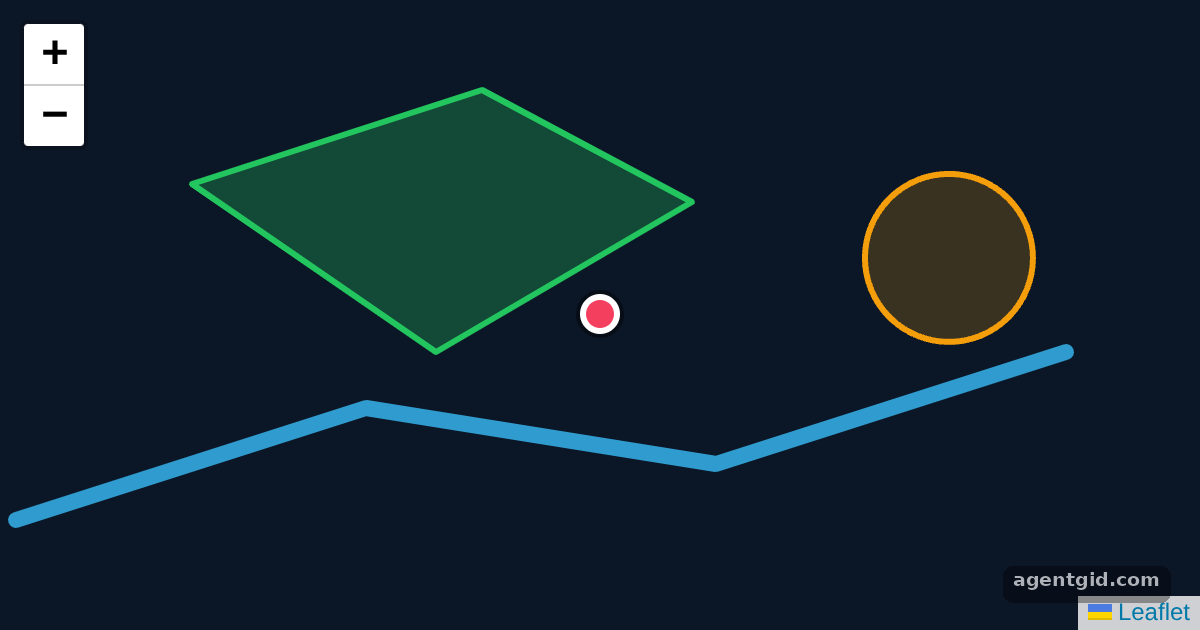 Map, marker and popup in React LeafletClick the pink marker to open its popup, and drag the map to pan around the shapes.
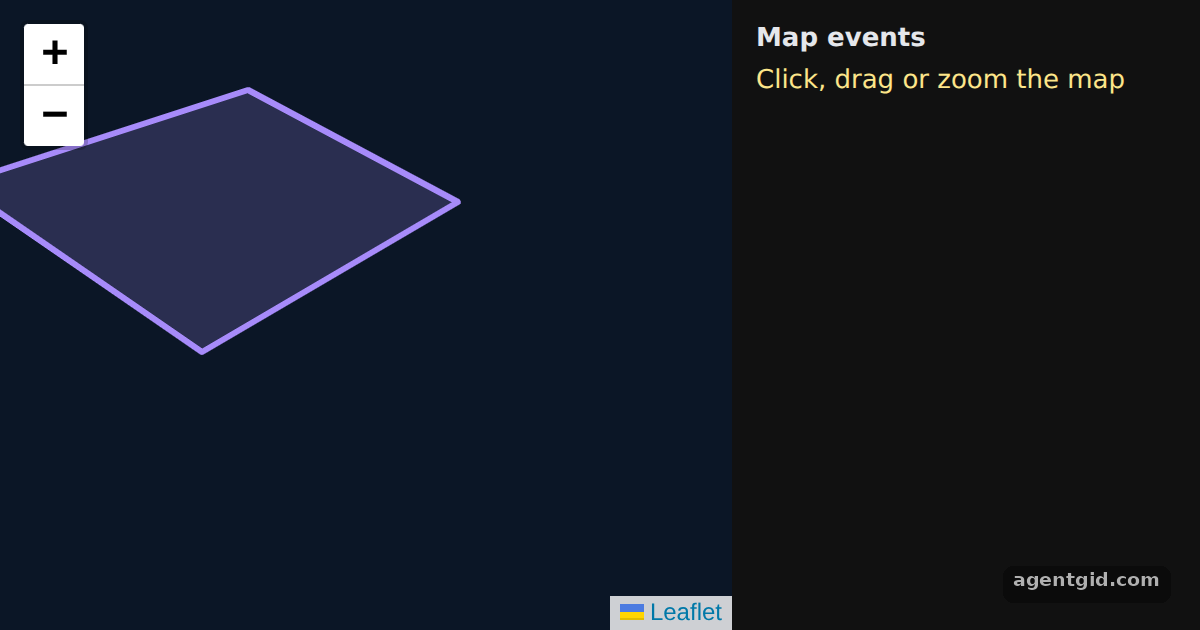 Listening to map events with useMapEventsClick, drag or use the zoom buttons: the newest event appears at the top of the list on the right.
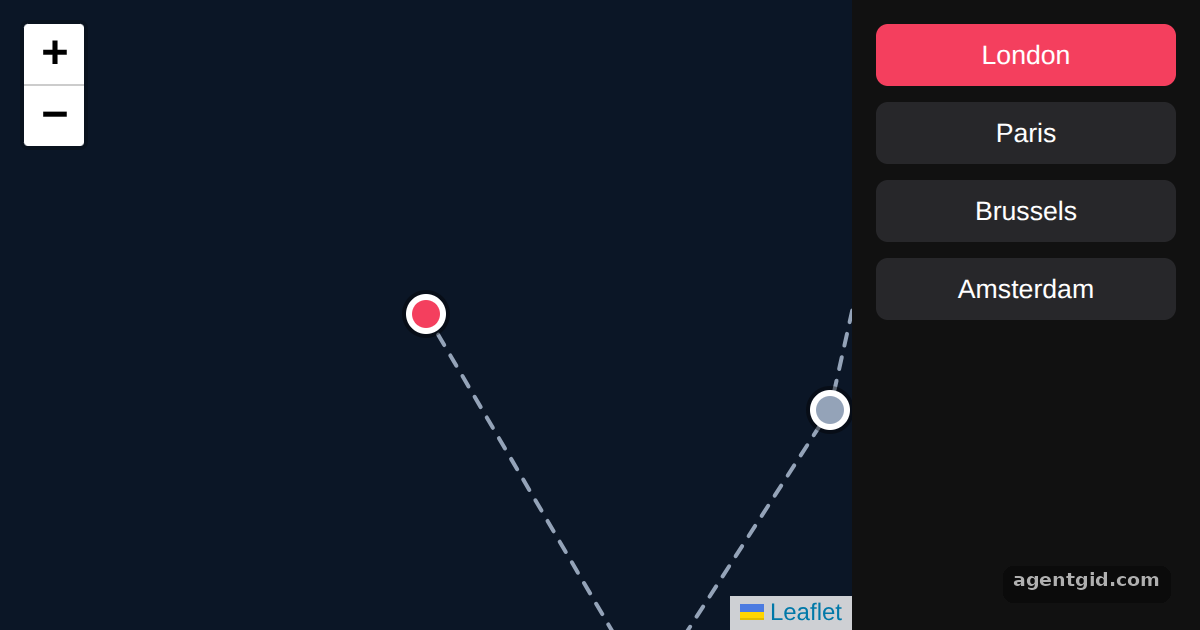 Changing the map view with useMapClick a city on the right: the map recentres on it and its marker turns pink.
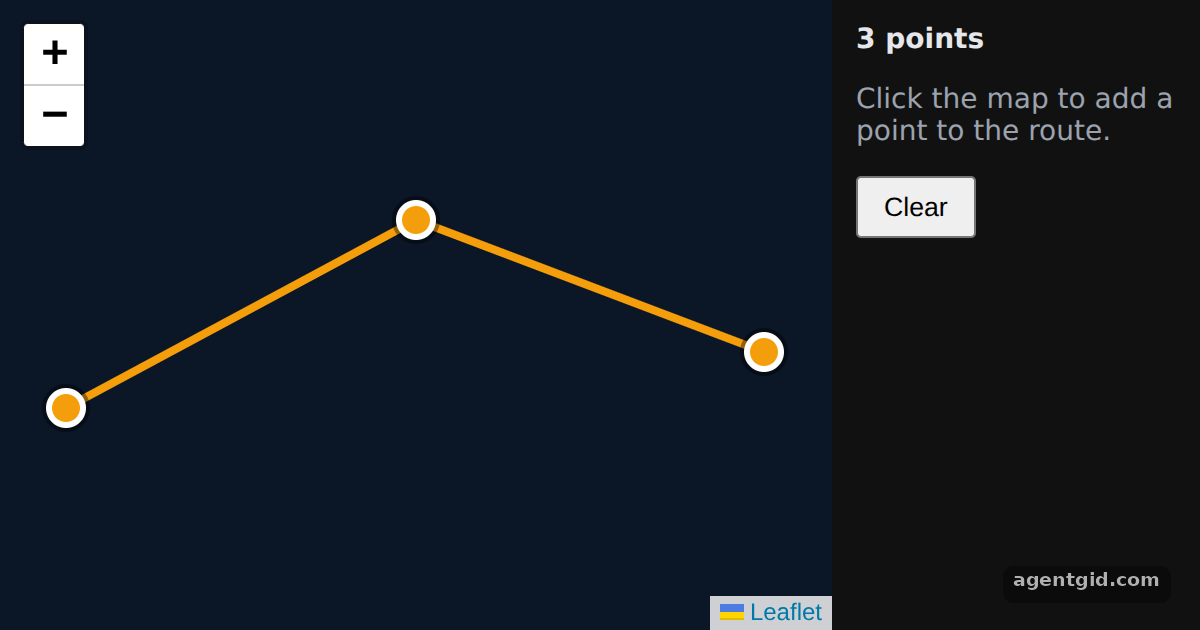 Adding markers on click in React LeafletClick anywhere on the map to add a point; click a marker to see its coordinates, or press Clear.
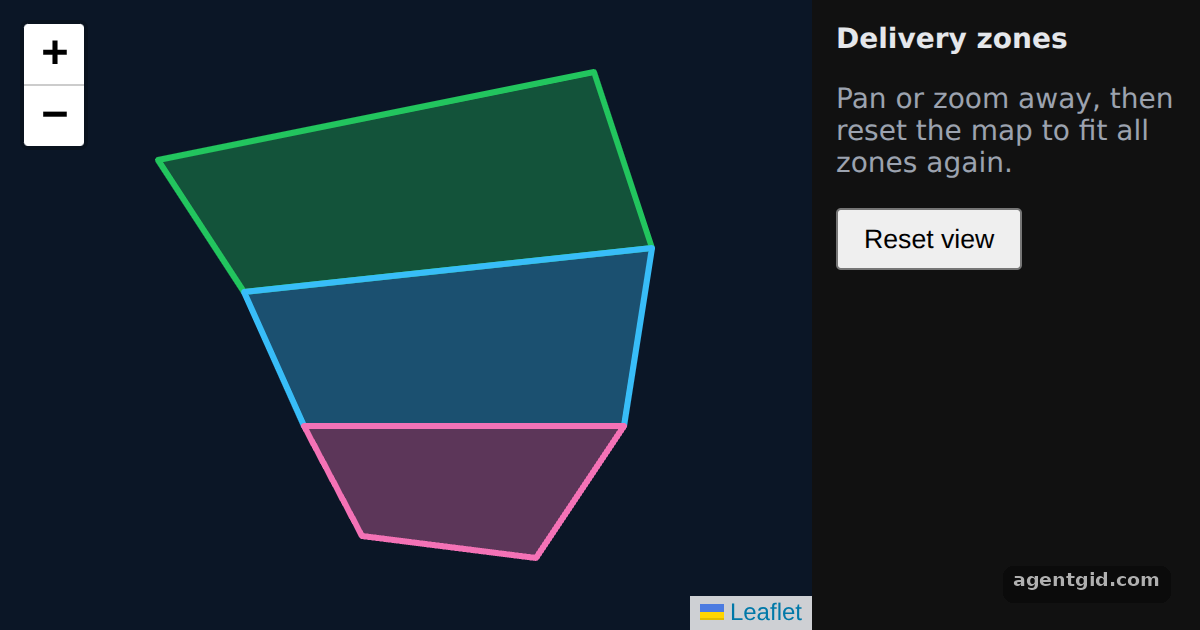 Fitting the map to bounds in React LeafletDrag or zoom the map, then press Reset view; click a zone to see its name.
Try them all in one place
import { MapContainer, Marker, Popup, Polygon, Polyline, Circle } from "react-leaflet";
import L from "leaflet";

// A marker icon drawn with HTML and CSS (no image files)
const pin = (color) => L.divIcon({ className: "", iconSize: [20, 20], iconAnchor: [10, 10],
  html: `<div style="width:14px;height:14px;border-radius:50%;background:${color};border:3px solid #fff;box-shadow:0 0 0 2px rgba(0,0,0,.4)"></div>` });

const position = [51.505, -0.09];
const park = [[51.512, -0.125], [51.517, -0.1], [51.511, -0.082], [51.503, -0.104]];
const river = [[51.494, -0.14], [51.5, -0.11], [51.497, -0.08], [51.503, -0.05]];

export default function App() {
  return (
    <MapContainer center={position} zoom={13} scrollWheelZoom={false} style={{ height: "100vh", background: "#0b1626" }}>
      <Polygon positions={park} pathOptions={{ color: "#22c55e", fillOpacity: 0.3 }} />
      <Polyline positions={river} pathOptions={{ color: "#38bdf8", weight: 8, opacity: 0.8 }} />
      <Circle center={[51.508, -0.06]} radius={500} pathOptions={{ color: "#f59e0b" }} />
      <Marker position={position} icon={pin("#f43f5e")}>
        <Popup>
          A pretty CSS3 popup. <br /> Easily customizable.
        </Popup>
      </Marker>
    </MapContainer>
  );
}
Click the pink marker to open its popup, and drag the map to pan around the shapes. Code written by AgentGid [1]. How it works, with a screenshot →
Click the pink marker to open its popup, and drag the map to pan around the shapes. Code written by AgentGid [1]. How it works, with a screenshot →Click, drag or use the zoom buttons: the newest event appears at the top of the list on the right. Code written by AgentGid [3]. How it works, with a screenshot →Click a city on the right: the map recentres on it and its marker turns pink. Code written by AgentGid [3]. How it works, with a screenshot →Click anywhere on the map to add a point; click a marker to see its coordinates, or press Clear. Code written by AgentGid [3]. How it works, with a screenshot →Drag or zoom the map, then press Reset view; click a zone to see its name. Code written by AgentGid [3]. How it works, with a screenshot →Checked Oct 12, 2026: each example starts without errors in Chromium with react-leaflet 5.0.0, react 19.3.0, react-dom 19.3.0, leaflet 1.9.4. Needs WebGL.
Sources
Explanations written by AgentGid from the official docs; the numbers in brackets point here. The code marked "written by AgentGid" is ours and free to copy.