Changing toast position in Sonner
Toasts can sit in any corner or centred at the top or bottom of the screen. The position is set once on the Toaster.
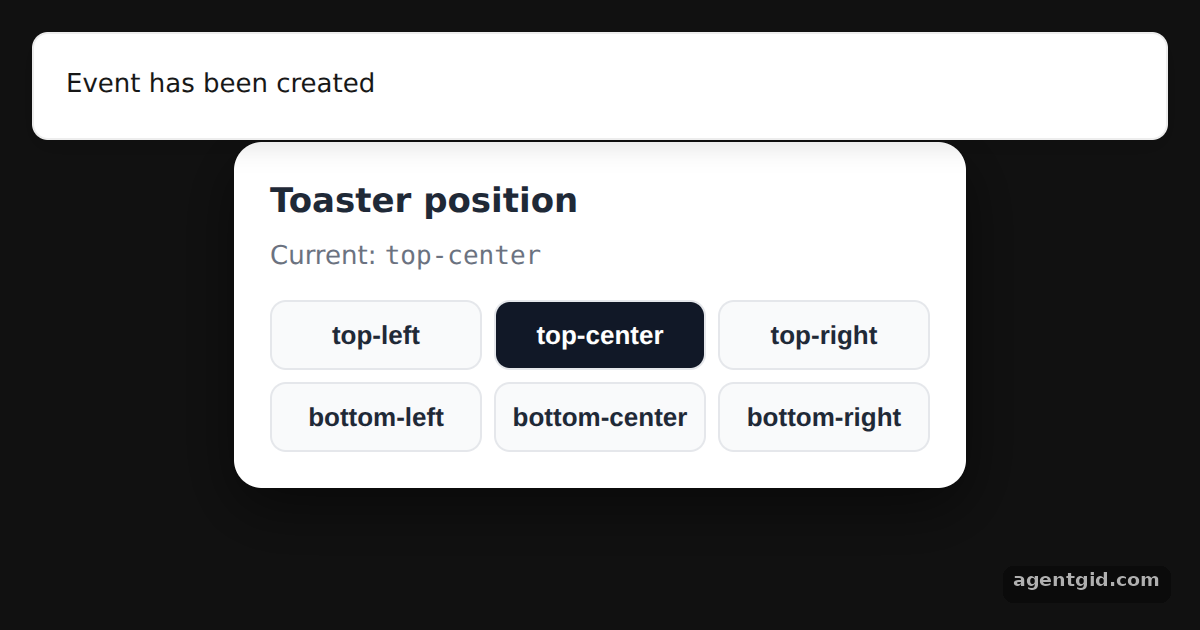
How it works
- Six positions. The buttons list every value the docs show for
position. The chosen one is stored in state. [1] - Pass it to the Toaster.
<Toaster position={position} />places every toast, and each click also fires a toast so you see the new spot. [1] - Start at the top. The state starts at
"top-center", and a toast fires on load so the position is visible right away. [2]
Run and edit it
It runs in your browser, in a sandboxed frame that cannot see this site; the packages load from esm.sh only after you press Run.
import { useEffect, useState } from "react";
import { Toaster, toast } from "sonner";

const positions = ["top-left", "top-center", "top-right", "bottom-left", "bottom-center", "bottom-right"];

const S = {
  page: { minHeight: "100vh", display: "flex", alignItems: "center", justifyContent: "center", background: "#111", fontFamily: "system-ui, sans-serif" },
  card: { width: 330, background: "#fff", color: "#1f2937", borderRadius: 14, padding: 18, boxShadow: "0 10px 30px rgba(0,0,0,.5)" },
  grid: { display: "grid", gridTemplateColumns: "repeat(3, 1fr)", gap: 6 },
  btn: { padding: "9px 0", border: "1px solid #e5e7eb", borderRadius: 8, fontSize: 13, fontWeight: 600, cursor: "pointer" },
};

export default function App() {
  const [position, setPosition] = useState("top-center");

  useEffect(() => {
    const id = setTimeout(() => toast("Event has been created"), 300);
    return () => clearTimeout(id);
  }, []);

  const pick = (p) => {
    setPosition(p);
    toast(`Toast at ${p}`);
  };

  return (
    <div style={S.page}>
      {/* the Toaster decides where every toast is placed */}
      <Toaster position={position} />
      <div style={S.card}>
        <h2 style={{ margin: "0 0 4px", fontSize: 17 }}>Toaster position</h2>
        <p style={{ margin: "0 0 12px", fontSize: 13, color: "#6b7280" }}>
          Current: <code>{position}</code>
        </p>
        <div style={S.grid}>
          {positions.map((p) => (
            <button key={p} onClick={() => pick(p)} style={{ ...S.btn, background: p === position ? "#111827" : "#f9fafb", color: p === position ? "#fff" : "#1f2937" }}>
              {p}
            </button>
          ))}
        </div>
      </div>
    </div>
  );
}
Click a position button: the next toast appears in that place. Code written by AgentGid [1].
Click a position button: the next toast appears in that place. Code written by AgentGid [1].Checked Oct 12, 2026: it starts without errors in Chromium with sonner 2.0.8, react 19.3.0, react-dom 19.3.0. Needs WebGL.
More Sonner examples
Showing a toast with Sonner Toast types in Sonner Rich colors for Sonner toasts Expanded toasts and visibleToasts in Sonner
Sources
Explanations written by AgentGid from the official docs; the numbers in brackets point here. The code marked "written by AgentGid" is ours and free to copy.