Radix UI Examples You Can Edit and Run
4 small Radix UI examples written by AgentGid from the official docs, one feature each. Every one runs in your browser: change the code and see the result at once, or describe a change and let AI rewrite it. The screenshots are taken from the same code by our server, which also checks that each example starts without errors.
Radix UI: usage and stats 809 AI-built projects use it
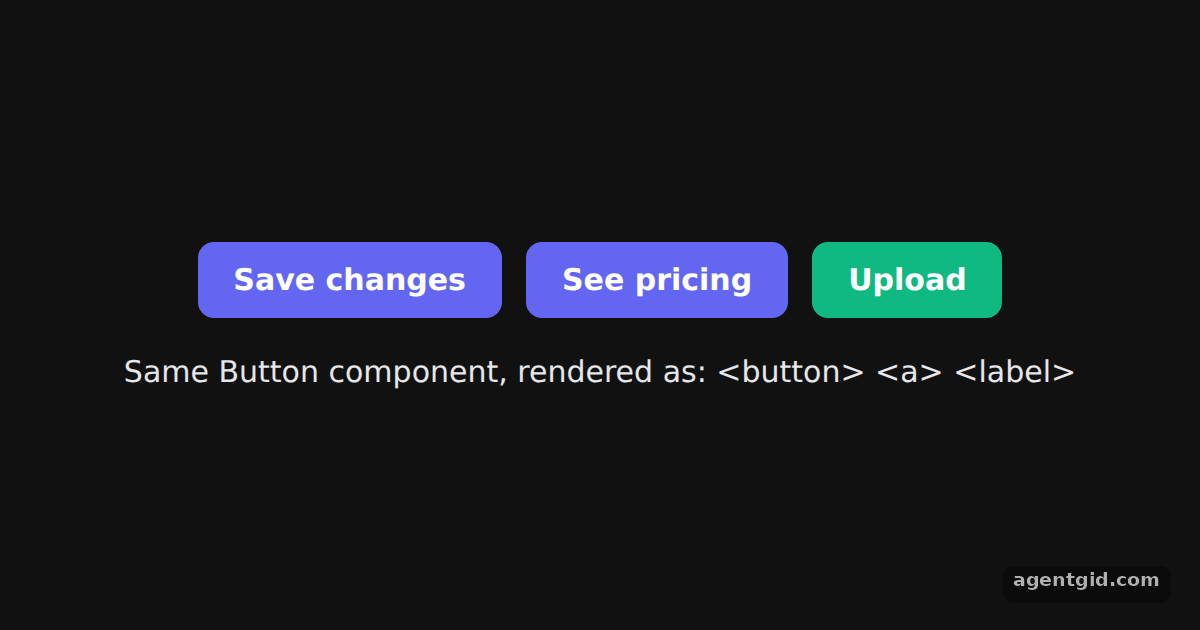 The asChild pattern with Radix SlotThe three controls share one Button component; the line below lists the HTML tags they actually rendered.
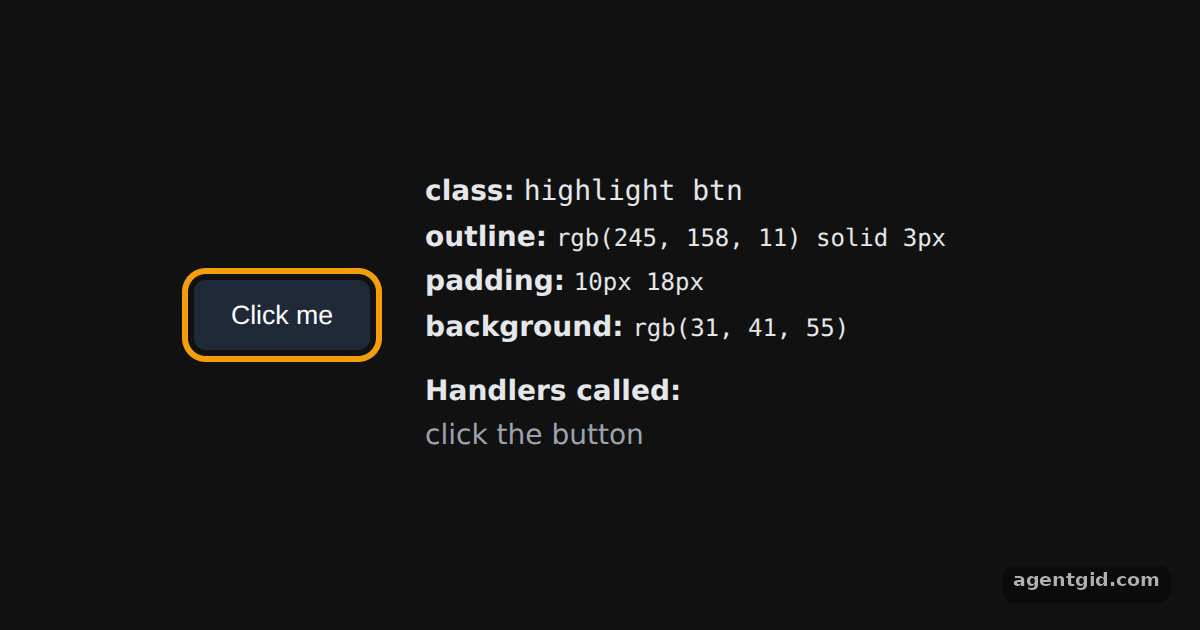 How Radix Slot merges propsClick the button: the log on the right shows the child's and the Slot's click handlers.
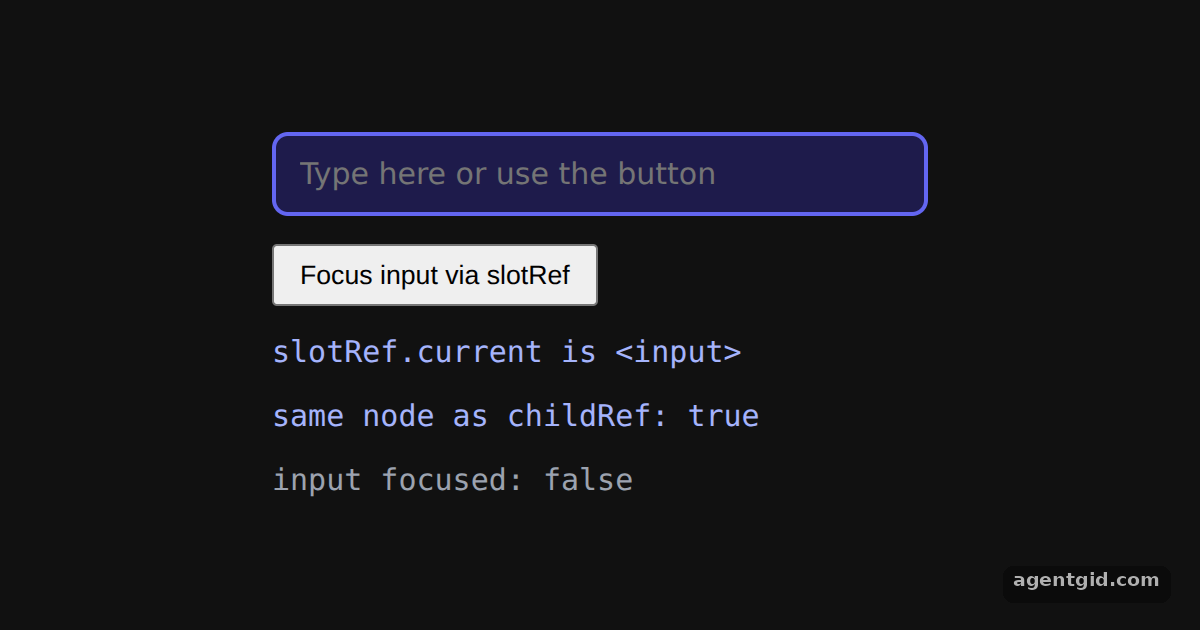 Passing refs through Radix SlotPress the button to focus the input through the Slot's ref; the last line turns green while the input has focus.
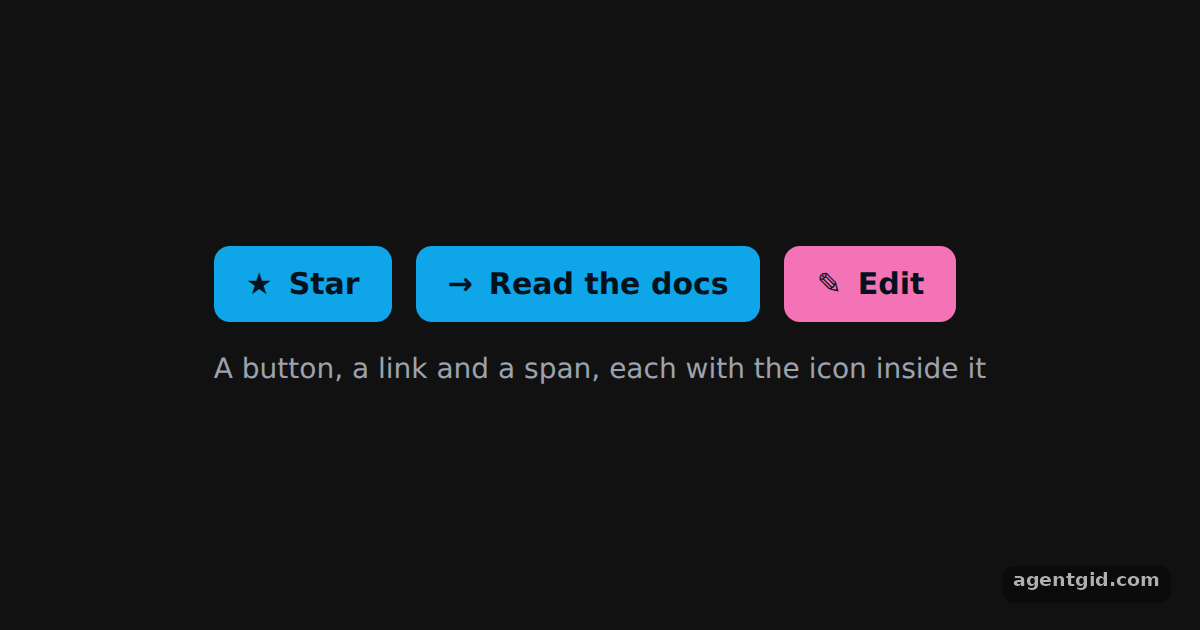 Icon button with Radix SlottableAll three controls come from IconButton: a real button, a link and a span, each with its icon inside.
Try them all in one place
import { useEffect, useState } from "react";
import { Slot } from "@radix-ui/react-slot";

const base = { display: "inline-block", padding: "10px 18px", borderRadius: 8, border: "none", background: "#6366f1", color: "#fff", font: "600 15px system-ui, sans-serif", textDecoration: "none", cursor: "pointer" };

// With asChild, Button renders the element you pass in and puts its own props on it
function Button({ asChild = false, style, ...props }) {
  const Comp = asChild ? Slot : "button";
  return <Comp data-button="" style={{ ...base, ...style }} {...props} />;
}

export default function App() {
  const [tags, setTags] = useState([]);
  const [saved, setSaved] = useState(false);
  useEffect(() => {
    setTags([...document.querySelectorAll("[data-button]")].map((el) => "<" + el.tagName.toLowerCase() + ">"));
  }, []);
  return (
    <div style={{ minHeight: "100vh", display: "grid", placeContent: "center", gap: 18, background: "#111", color: "#e5e7eb", font: "15px system-ui, sans-serif", textAlign: "center" }}>
      <div style={{ display: "flex", gap: 12, justifyContent: "center" }}>
        <Button onClick={() => setSaved(true)}>{saved ? "Saved" : "Save changes"}</Button>
        <Button asChild>
          <a href="#pricing">See pricing</a>
        </Button>
        <Button asChild style={{ background: "#10b981" }}>
          <label>Upload<input type="file" hidden /></label>
        </Button>
      </div>
      <div>Same Button component, rendered as: {tags.join(" ")}</div>
    </div>
  );
}
The three controls share one Button component; the line below lists the HTML tags they actually rendered. Code written by AgentGid [1]. How it works, with a screenshot →
The three controls share one Button component; the line below lists the HTML tags they actually rendered. Code written by AgentGid [1]. How it works, with a screenshot →Click the button: the log on the right shows the child's and the Slot's click handlers. Code written by AgentGid [2]. How it works, with a screenshot →Press the button to focus the input through the Slot's ref; the last line turns green while the input has focus. Code written by AgentGid [2]. How it works, with a screenshot →All three controls come from IconButton: a real button, a link and a span, each with its icon inside. Code written by AgentGid [2]. How it works, with a screenshot →Checked Oct 12, 2026: each example starts without errors in Chromium with @radix-ui/react-slot 1.5.0, react 19.3.0, react-dom 19.3.0. Needs WebGL.
Sources
Explanations written by AgentGid from the official docs; the numbers in brackets point here. The code marked "written by AgentGid" is ours and free to copy.