Setting icon size in Lucide React
Icons often need several sizes in one interface, from small inline icons to large empty-state art. In lucide-react the size is a prop.
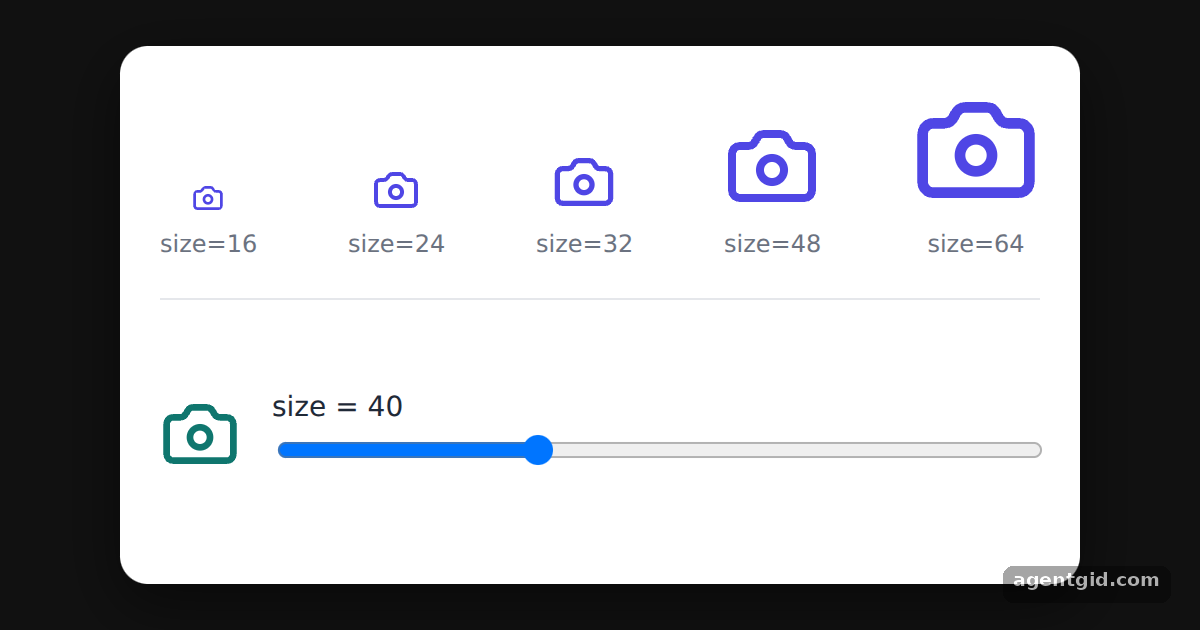
How it works
- Size is a customization option. Lucide lists size among the options you can change, next to colour and stroke width. [1]
- Pass size to the component. The top row renders
<Camera size={s} />for 16, 24, 32, 48 and 64. The slider feeds its value into thesizeof the larger icon below. [2] - Vector output. Because the icons are SVG, every size is drawn from the same vector paths. [1]
Run and edit it
It runs in your browser, in a sandboxed frame that cannot see this site; the packages load from esm.sh only after you press Run.
import { useState } from "react";
import { Camera } from "lucide-react";

const sizes = [16, 24, 32, 48, 64];

const S = {
  page: { minHeight: "100vh", display: "flex", alignItems: "center", justifyContent: "center", background: "#111", fontFamily: "system-ui, sans-serif" },
  card: { width: 440, background: "#fff", color: "#1f2937", borderRadius: 14, padding: 20, boxShadow: "0 10px 30px rgba(0,0,0,.5)" },
  row: { display: "flex", alignItems: "flex-end", justifyContent: "space-between", marginBottom: 18 },
  cell: { display: "flex", flexDirection: "column", alignItems: "center", gap: 6, fontSize: 12, color: "#6b7280" },
  live: { display: "flex", alignItems: "center", gap: 16, height: 110, borderTop: "1px solid #e5e7eb", paddingTop: 12 },
};

export default function App() {
  const [size, setSize] = useState(40);
  return (
    <div style={S.page}>
      <div style={S.card}>
        <div style={S.row}>
          {sizes.map((s) => (
            <div key={s} style={S.cell}>
              <Camera size={s} color="#4f46e5" />
              size={s}
            </div>
          ))}
        </div>
        <div style={S.live}>
          <Camera size={size} color="#0f766e" />
          <label style={{ flex: 1, fontSize: 14 }}>
            size = {size}
            <input type="range" min={12} max={96} value={size} onChange={(e) => setSize(Number(e.target.value))} style={{ width: "100%" }} />
          </label>
        </div>
      </div>
    </div>
  );
}
Drag the slider to resize the bottom icon between 12 and 96 pixels. Code written by AgentGid [1].
Drag the slider to resize the bottom icon between 12 and 96 pixels. Code written by AgentGid [1].Checked Oct 12, 2026: it starts without errors in Chromium with lucide-react 1.55.0, react 19.3.0, react-dom 19.3.0. Needs WebGL.
More Lucide React examples
Using Lucide icons as React components Changing icon colour in Lucide React Stroke width in Lucide React icons Filled icons in Lucide React
Sources
Explanations written by AgentGid from the official docs; the numbers in brackets point here. The code marked "written by AgentGid" is ours and free to copy.