input-otp Examples You Can Edit and Run
5 small input-otp examples written by AgentGid from the official docs, one feature each. Every one runs in your browser: change the code and see the result at once, or describe a change and let AI rewrite it. The screenshots are taken from the same code by our server, which also checks that each example starts without errors.
input-otp: usage and stats 269 AI-built projects use it
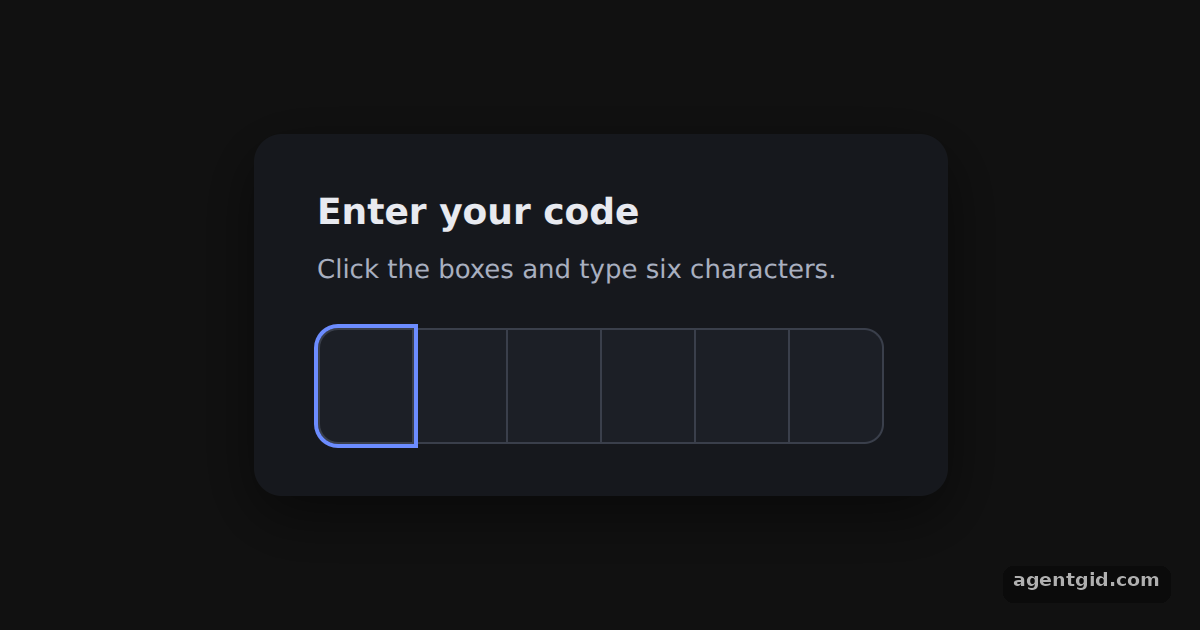 A basic OTP input with input-otpType, paste, select or delete inside the boxes: everything goes through one invisible input.
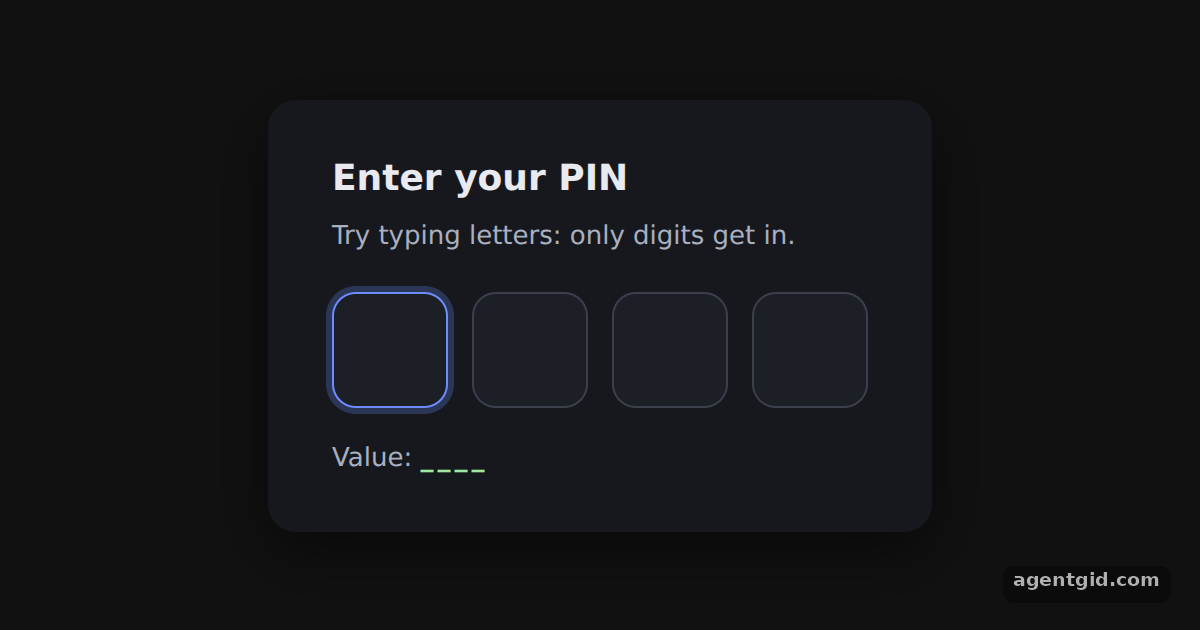 A digits-only PIN in input-otpType digits and letters; only the digits appear, and the value line updates as you go.
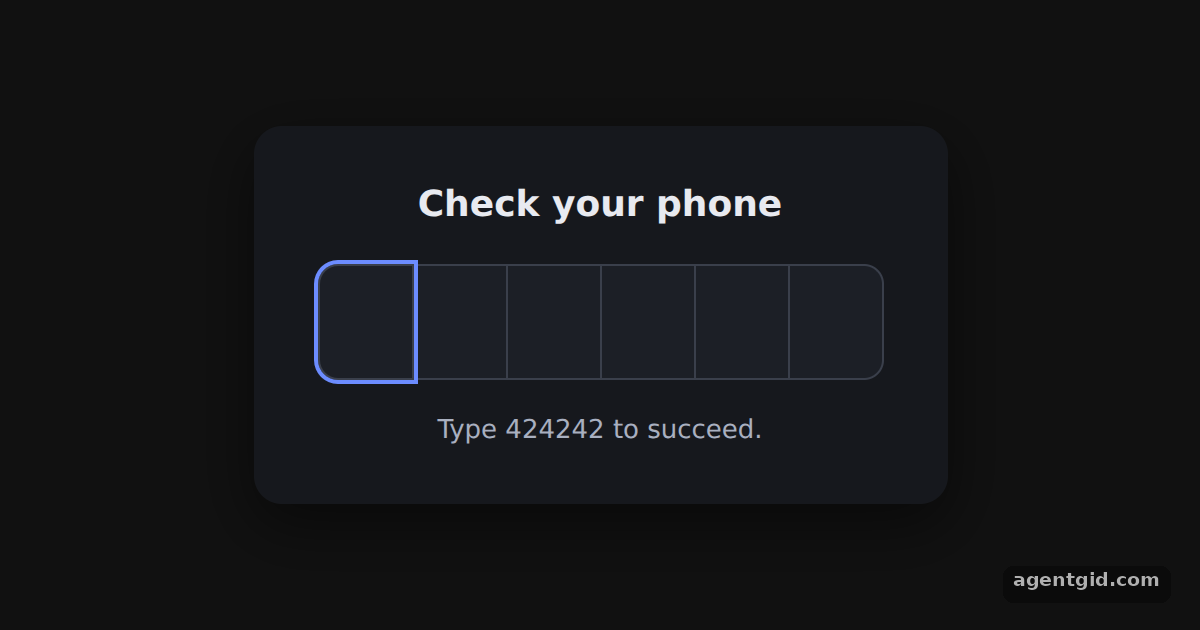 Auto-submit a code with onCompleteType any other six digits to see the error and focus recovery, then type 424242.
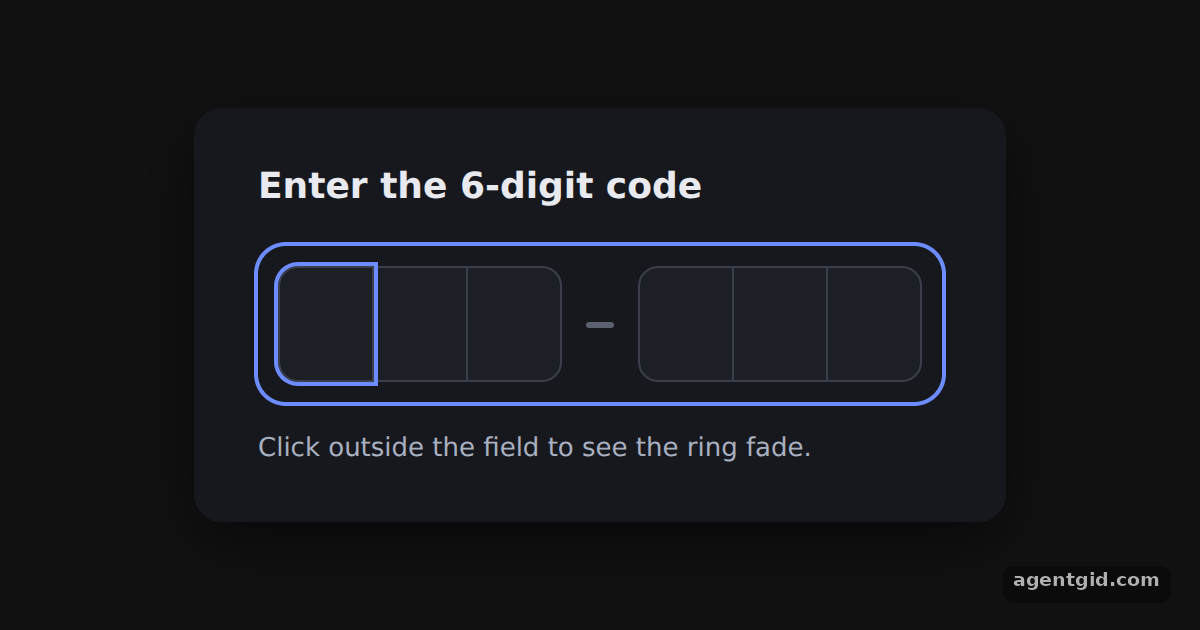 Two slot groups with a dash in input-otpType six characters and watch the caret jump the dash; click outside to see the ring change.
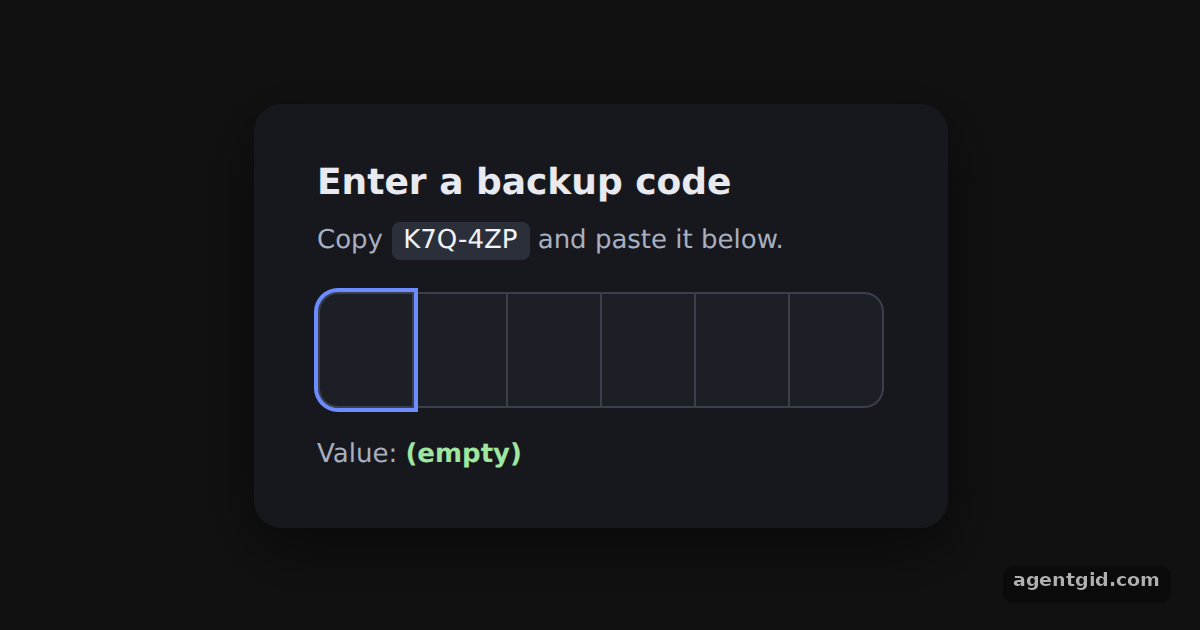 Alphanumeric codes and paste cleanup in input-otpCopy the sample code with the dash and paste it into the boxes: the dash is dropped.
Try them all in one place
import { OTPInput } from "input-otp";

const CSS = `
.otp-row { display: flex; }
.otp-slot { position: relative; width: 46px; height: 56px; display: flex; align-items: center; justify-content: center;
  border: 1px solid #3a3f4b; border-left-width: 0; background: #1c1f26; color: #f2f4f8;
  font: 600 24px system-ui, sans-serif; outline: 2px solid transparent; transition: outline-color .15s; }
.otp-slot:first-child { border-left-width: 1px; border-radius: 10px 0 0 10px; }
.otp-slot:last-child { border-radius: 0 10px 10px 0; }
.otp-slot.active { outline-color: #6c8cff; z-index: 1; }
.otp-caret { position: absolute; width: 2px; height: 26px; background: #f2f4f8; animation: blink 1s step-end infinite; }
@keyframes blink { 50% { opacity: 0; } }
`;

// One visible box per slot; the real input sits invisibly on top
function Slot({ char, placeholderChar, isActive, hasFakeCaret }) {
  return (
    <div className={isActive ? "otp-slot active" : "otp-slot"}>
      {char ?? placeholderChar}
      {hasFakeCaret && <div className="otp-caret" />}
    </div>
  );
}

export default function App() {
  return (
    <div style={{ minHeight: "100vh", display: "flex", alignItems: "center", justifyContent: "center", background: "#111", fontFamily: "system-ui, sans-serif" }}>
      <style>{CSS}</style>
      <div style={{ background: "#16181d", padding: "26px 32px", borderRadius: 14, color: "#e8eaf0", boxShadow: "0 10px 30px rgba(0,0,0,.5)" }}>
        <h3 style={{ margin: "0 0 6px", fontSize: 18 }}>Enter your code</h3>
        <p style={{ margin: "0 0 18px", fontSize: 13, color: "#a9b0c0" }}>Click the boxes and type six characters.</p>
        <OTPInput
          maxLength={6}
          autoFocus
          render={({ slots }) => (
            <div className="otp-row">
              {slots.map((slot, idx) => <Slot key={idx} {...slot} />)}
            </div>
          )}
        />
      </div>
    </div>
  );
}
Type, paste, select or delete inside the boxes: everything goes through one invisible input. Code written by AgentGid [1]. How it works, with a screenshot →
Type, paste, select or delete inside the boxes: everything goes through one invisible input. Code written by AgentGid [1]. How it works, with a screenshot →Type digits and letters; only the digits appear, and the value line updates as you go. Code written by AgentGid [1]. How it works, with a screenshot →Type any other six digits to see the error and focus recovery, then type 424242. Code written by AgentGid [3]. How it works, with a screenshot →Type six characters and watch the caret jump the dash; click outside to see the ring change. Code written by AgentGid [2]. How it works, with a screenshot →Copy the sample code with the dash and paste it into the boxes: the dash is dropped. Code written by AgentGid [1]. How it works, with a screenshot →Checked Oct 12, 2026: each example starts without errors in Chromium with input-otp 1.5.0, react 19.3.0, react-dom 19.3.0. Needs WebGL.
Sources
Explanations written by AgentGid from the official docs; the numbers in brackets point here. The code marked "written by AgentGid" is ours and free to copy.